A wedding guest list with personal links and a QR entry pass
The Dawaitna Team · 2026-10-28
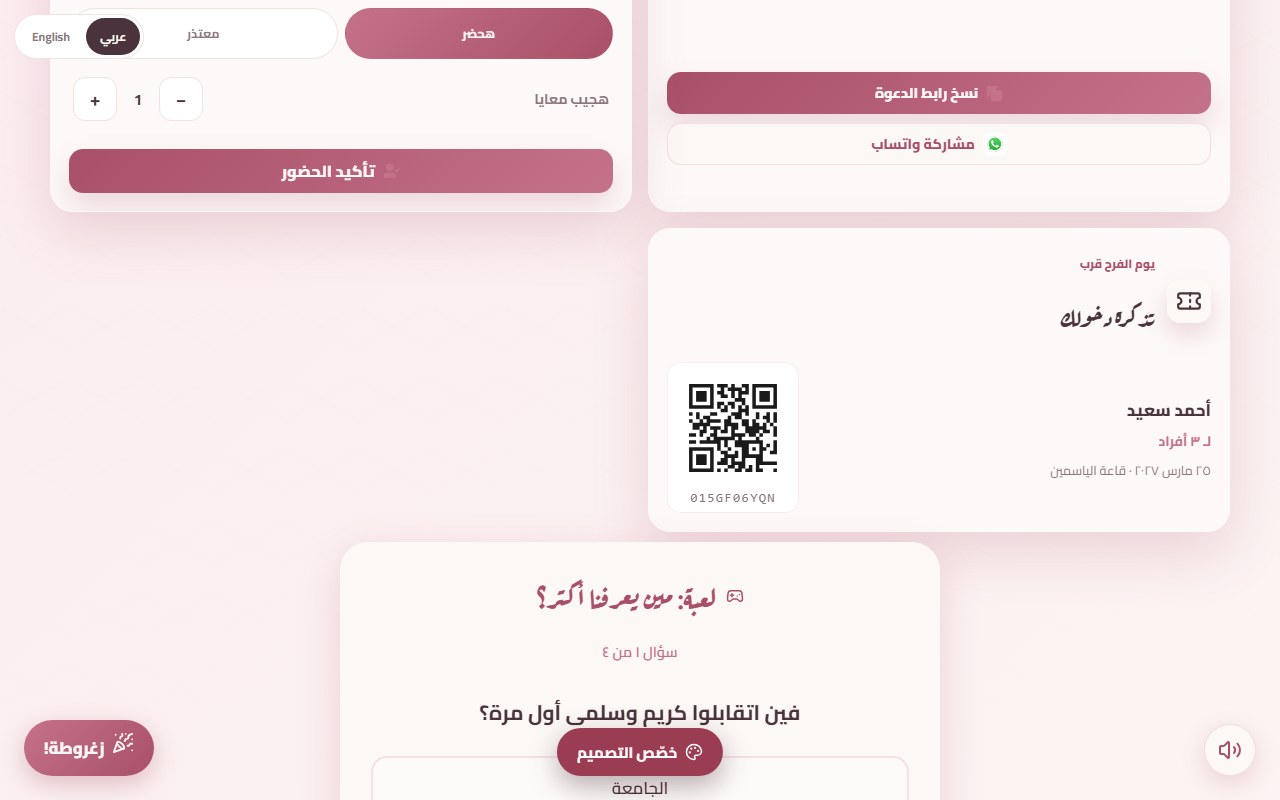
One shared link works well for most weddings: anyone who has it can say they're coming, and the numbers add up on their own. It works less well when the hall has a fixed number of seats and the family wants to know exactly who is behind each answer. With every chair counted and a hall that charges per head, guessing is expensive.
One link per guest
In the guest list in your account, you paste the list, one line per guest (an agent does the same from their dashboard on a page they made): the name, the phone number, and how many seats that guest has. Each guest then gets a personal link. It can be sent from a WhatsApp button next to the name, or all the links can be copied at once and sent from a group or a broadcast list. The door screen is one tap from the same place.
A guest who opens their own link doesn't type a name. The invitation already knows who they are and how many seats they have, so the RSVP is one tap. They can say they are bringing someone extra, and if the wedding has more than one event (a henna night, a katb kitab, the wedding itself), they answer for each.
This fixes a familiar problem: someone says "two of us are coming" and five turn up. Here the number is attached to the link, and the guest can see they have two seats, not five.
The entry pass
Once a guest confirms they are coming, a new section appears on their page: the entry pass. It shows their name, the number of people, the date and the venue, and a QR code with a short code under it. The section doesn't appear until the guest has a personal link and has answered yes.
Nothing is installed and nothing is printed. On the day, the guest opens the same link and shows the screen. Nobody has to queue while someone hunts for a name on a paper list.
At the door
Whoever stands at the door opens the door screen on a phone and points the camera at the pass. The screen shows the guest's name and party size with a welcome line in green. It also says when a pass was already checked in (amber), when the guest had declined (red), and when the code isn't on the list. A wrong tap can be undone.
Camera scanning works in browsers that support it. If the phone at the door doesn't, type the code printed under the QR. Test this the day before the wedding, not at the door.
A week before the wedding
- Check the list. A misspelled name prints on the pass as it was typed.
- Send the links early. The sooner replies arrive, the sooner you know the real number of chairs.
- Try a pass yourself. Add a test guest with your own number, open their link, reply, and scan the pass from a second phone.
- Decide who stands at the door. One or two relatives who can use the screen, with a charger.
- Agree on exceptions. Who gets in with no pass? Settle it before the wedding, not at the door.
What the couple sees
The list shows three numbers at the top: how many were invited, how many answered, and how many seats are confirmed. If you built the page yourself, you see the list in your account, with each guest's answer next to the name. If an agent made the page, the agent runs the list from their dashboard, and the couple sees the same list through the private follow-up code that comes with it. The same code lets them edit the words, names and photos for 12 hours from their first sign-in. The design and the sections stay with the agent.
Switch on the RSVP and entry pass sections when you add the guest list (or ask your agent to). If the wedding is small and everyone knows everyone, one link and the ordinary RSVP form is enough.